Syncthing on Raspberry Pi
As of 3/23/25 Syncthing is running on 192.168.1.246
http://192.168.1.246:8384/#
syncthing stop from powershell
taskkill /F /IM syncthing.exe
Synchronizing Files on your Raspberry Pi with Syncthing
Find everything running on the network:
sudo nmap -sn 192.168.1.0/24
Assign static IP to raspberry Pi
https://pimylifeup.com/raspberry-pi-static-ip-address/
Installing Syncthing to Your Raspberry Pi
In this section, you will learn how to easily install the Syncthing software to your Raspberry Pi using straightforward steps.
To install the software, we will need to add the project’s PGP keys and add its package repository as a potential source.
1. Before installing the file synchronization software to our Pi, we should first update the system.
We can update our Raspberry Pi by running the following two commands.
sudo apt update
sudo apt full-upgrade
2. Next, make sure the apt-transport-https package is installed.
This package allows the package manager to handle sources that operate over the HTTPS protocol. By default, this is not supported.
Typically this is provided with most operating systems these days, however, trimmed back ones such as Raspberry Pi OS Lite might have it removed.
Install the required package by running the command below.
sudo apt install apt-transport-https
3. Finally, store the Syncthing GPG keys in keyrings directory.
These keys are designed to ensure that the packages we are installing have been correctly signed and aren’t coming from an unexpected source.
Download and save the keys by using the following command on your Raspberry Pi.
curl -s https://syncthing.net/release-key.txt | gpg --dearmor | sudo tee /usr/share/keyrings/syncthing-archive-keyring.gpg >/dev/null
4. With the key added, we can now add the repository itself.
For this Raspberry Pi project, we will be utilizing the stable branch of the Syncthing software.
Add the repository to our sources list by using the command below.
echo "deb [signed-by=/usr/share/keyrings/syncthing-archive-keyring.gpg] https://apt.syncthing.net/ syncthing stable" | sudo tee /etc/apt/sources.list.d/syncthing.list
5. Before we will install Syncthing from the repository, we need to update the package list.
We need to update the list so that the package manager reads from our newly added source.
Refresh the package list by running the following command on your device.
sudo apt update
6. Finally, let us install the Syncthing software to our Raspberry Pi.
With the package repository now added, all we need to do to install the software is run the following command.
sudo apt install syncthing
Allowing Outside Access to your Syncthing Web Interface
By default, we won’t be able to access the Syncthing web interface without being physically on the device.
As this would make it a frustrating experience for those running a headless Raspberry Pi, we can modify the configuration to allow outside access.
1. Our first task is to get the current local IP address assigned to our Raspberry Pi.
Please note that you should have your Raspberry Pi set up with a static IP address before completing this section.
You can retrieve the local IP of your Pi by using the following command.
hostname -I
2. Before we continue any further, we will need to run Syncthing once to generate config files.
For this guide, we will just be running Syncthing under the current user.
syncthing
After the initial run, kill the application by pressing CTRL + C.
3. After the first run, Syncthing will create all the configuration files we need.
This configuration file will only work as long as we run the Syncthing software with our pi user.
Begin editing the required config file using the nano text editor by using the command below.
IMPORTANT TO FIND CONFIG FILE:
find configuration file:
syncthing -paths
sudo nano ~/.local/state/syncthing/config.xml
4. Within this file, you need to find the following line.
To make it easier to find this line, you can use the CTRL + W shortcut to search.
<address>127.0.0.1:8384</address>
We will need to replace the local IP defined on this line (127.0.0.1) with our Pi’s local IP address.
For example, using our Pi’s IP, this line would end up turning into the following.
<address>192.168.0.193:8384</address>
Using the local IP address, we are restricting access to the web interface only to users on the same local network.
Alternatively, if you want to allow access to any address, use the IP “0.0.0.0“.
5. Once you have changed the IP, save the file by pressing CTRL + X, followed by Y, then ENTER.
Setting up Syncthing as a Service on the Raspberry Pi
With Syncthing’s web interface now accessible outside of the Raspberry Pi, we need to do one last task.
That task is to create and enable a service for the software. The service will allow Syncthing to start at boot and let it to be easily stopped and started.
1. We need to make use of nano again to create the file for our service.
The service that we will be putting together is from the official GitHub for Syncthing.
Run the following command to begin writing the file within the “/lib/systemd/system” directory.
sudo nano /lib/systemd/system/syncthing.service
this is probably better location?
sudo nano /etc/systemd/system/syncthing.service
2. Within this file, enter the following lines.
While entering these lines ensure that you replace “pi” with the name of your user.
[Unit]
Description=Syncthing - Open Source Continuous File Synchronization
Documentation=man:syncthing(1)
After=network.target

[Service]
User=pi
ExecStart=/usr/bin/syncthing -no-browser -no-restart -logflags=0
Restart=on-failure
RestartSec=5
SuccessExitStatus=3 4
RestartForceExitStatus=3 4

# Hardening
ProtectSystem=full
PrivateTmp=true
SystemCallArchitectures=native
MemoryDenyWriteExecute=true
NoNewPrivileges=true

[Install]
WantedBy=multi-user.target
These lines dictate how the operating system will handle Syncthing on our Raspberry Pi.
3. With all the lines entered, save the file by pressing CTRL + X, then Y, followed by the ENTER key.
4. With our service created, we can now enable it to start at boot.
All you need to do is run the following command.
sudo systemctl restart syncthing@$(whoami)
sudo systemctl enable syncthing@$(whoami)
sudo systemctl start syncthing@$(whoami)
sudo systemctl status syncthing@$(whoami)
sudo systemctl enable syncthing
5. Next, start the service so that we can begin accessing the Syncthing web interface.
To start the service, we need to use the systemctl command again.
sudo systemctl start syncthing
6. We should verify that our Syncthing service started on our Raspberry Pi.
We can verify this by using the command below.
sudo systemctl status syncthing
UFW profile
This tells you which ports the particular app uses
sudo ufw app info syncthing
UFW settings
sudo ufw status
OPEN Ports:
22000/tcp
21027/udp
sudo ufw allow 22000
sudo ufw allow 21027
sudo ufw allow 8384
If the service has started correctly and is running, you should see the following displayed within the message.
Active: active (running)
Using your Raspberry Pi’s Syncthing Web Interface
At this point, you should now have the Syncthing software up and running on your Raspberry Pi.
We can finally move on to configuring the software and adding a device to synchronize files with. To make this easier to follow, we will split this into smaller sections.
The web interface makes the process of setting up and connecting to devices very straightforward process.
Connecting to the Syncthing Web Interface
Before you can even use the web interface, you will need to first load it up in your favorite web browser.
1. To access the web interface, you will need to know the Raspberry Pi’s IP address.
With the IP in hand, you can go to the following web address in a web browser of your choice.
http://[PIIPADDRESS]:8384
If syncthing status stuck on activating:
Fix the Issue:
- Stop the Incorrectly Running Service (if it's running globally)
sudo systemctl stop syncthing
-
Start Syncthing with Your Username
sudo systemctl restart syncthing@$(whoami)Then check its status:
sudo systemctl status syncthing@$(whoami) -
Enable It to Start on Boot
sudo systemctl enable syncthing@$(whoami)
---
It’s essential that whatever you type in that the port number (`8384`) remains at the end as this is where the Syncthing software listens.
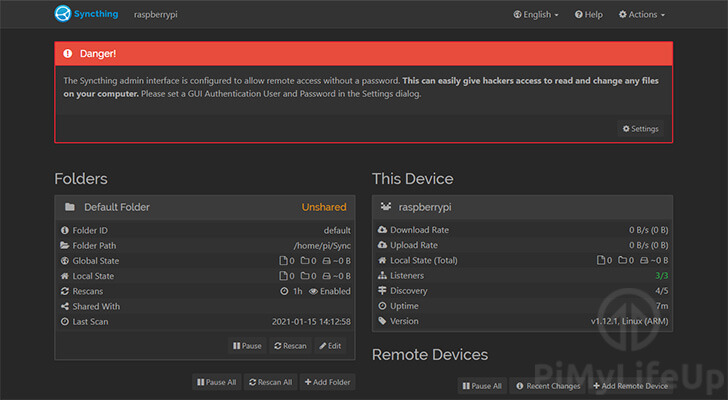
**2.** Upon going to the web address, you will be introduced to the Syncthing web interface.
Please note that you will be required to login before seeing the following screen once you set up a username and password.
### Securing the Syncthing Interface
By default, Syncthing comes with no username or password defined. What this means is that any user can access the interface and adjust your settings.
To stop users from being able to do any unwanted damage, you can define login details.
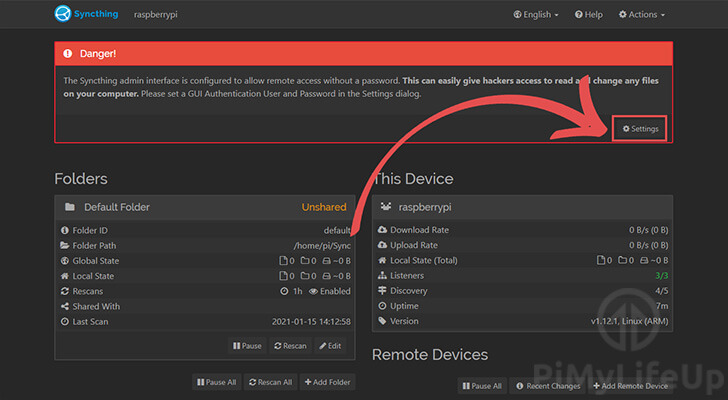
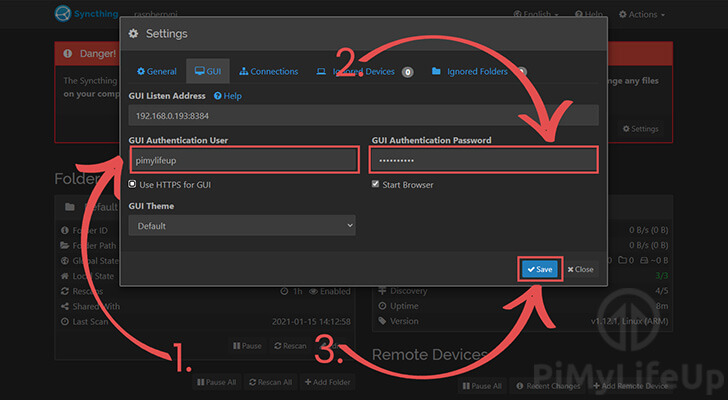
**1.** If you haven’t set the username and password before, you will see a message warning you of the dangers.
To get to the settings page quickly, we can click the “`Settings`” button on this warning.
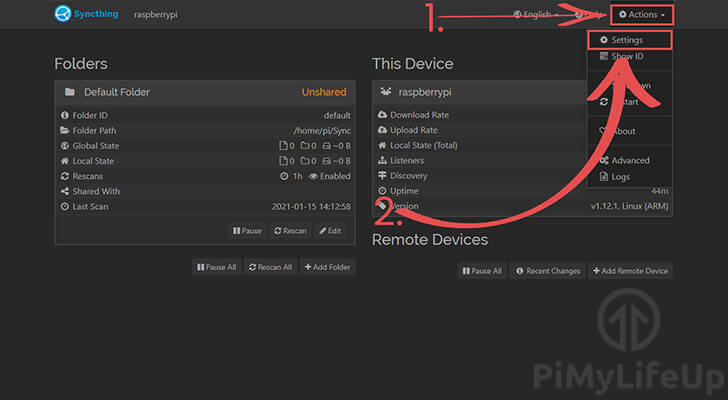
If this message isn’t displaying for you, you can also find the settings page by clicking the “`Actions`” (**1.**) dropdown box in the top right corner and selecting “`Settings`” (**2.**).
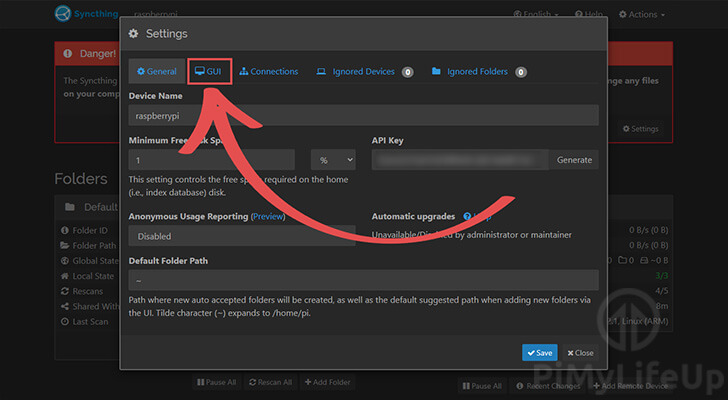
**2.** Within the popup settings page, you will need to change to the “`GUI`” tab.
You can change to this tab by clicking “`GUI`” in the bar at the top of the popup.
**3.** On this page, you will need to enter both a username (**1.**) and a password (**2.**).
Make sure you set a secure password that is not easily guessable. Try and use a combination of letters, numbers, and symbols.
Once you have entered both of these, you can save your changes by clicking the “`Save`” button (**3.**).
**4.** Upon saving your new password, you will be kicked out of the web interface.
Every time you want to use Syncthing’s interface, you will need to enter your new login details.
### Retrieving your Devices Syncthing ID
Syncthing works by generating a unique ID for every single device. To synchronize data between devices, each one must have the other device’s ID added.
Finding the ID of your Raspberry Pi Syncthing setup is a straightforward process and can be found within the web interface.
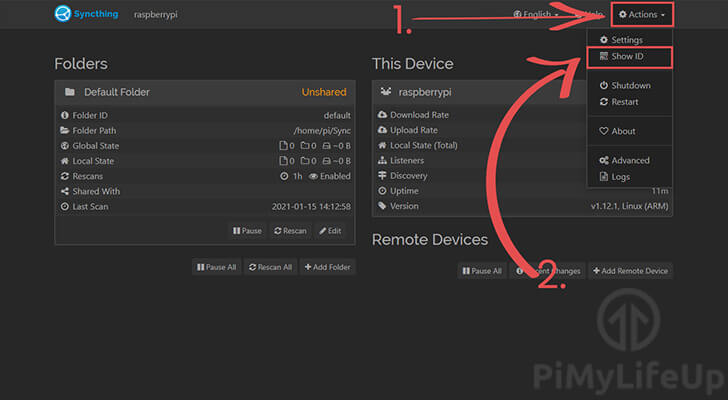
**1.** Back on the web interface’s main page, click the “`Actions`” toggle (**1.**) in the top right corner of the screen.
In the dropdown box, click the “`Show ID`” option (**2.**) to bring up the dialog box we are after.
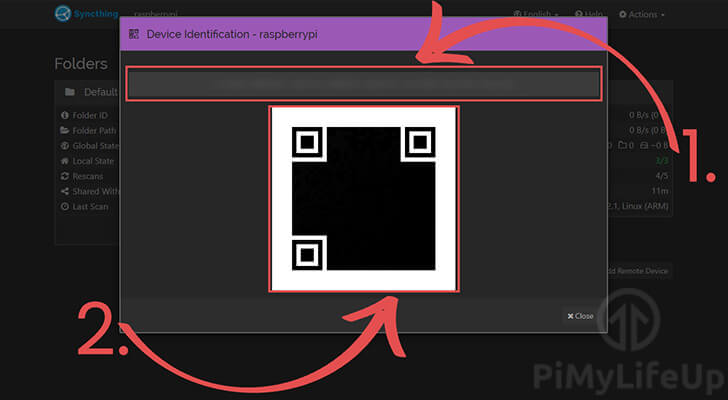
**2.** On this page, you will see the identification string (**1.**) and the matching QR code for the ID (**2.**).
Then identification string should be 50-56 characters long and contain numbers, letters, and hyphens. The hyphens are ignored by the system but are there to make the ID easier to read.
You will need to add your Raspberry Pi’s ID to the other devices you will be connecting to. Likewise, you will also need to add their ID.
The ID works as part of Syncthing’s method for connecting multiple devices to the same pool.
### Adding a Device to your Raspberry Pi’s Syncthing Pool
Now that you know how to retrieve your device’s ID let us now show you how to add another device’s ID.
Remember, whatever device you are adding must also add your Raspberry Pi’s ID. Otherwise, the devices will not be able to connect.
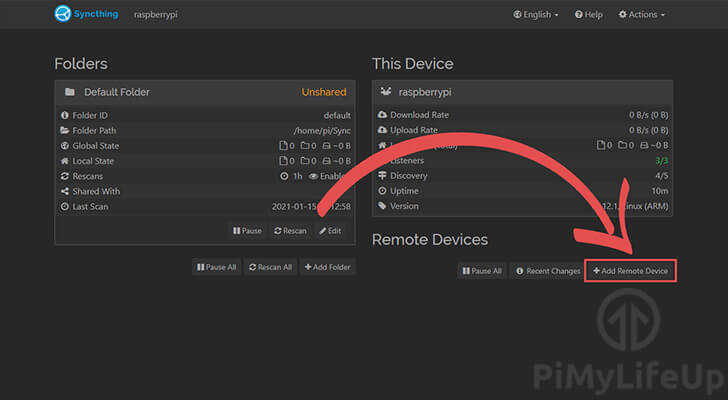
**1.** On the Syncthing interface, you need to click the “`Add Remote Device`” button located at the bottom right side.
Clicking this button will take us to the dialog that will allow us to add a device to our Syncthing pool.
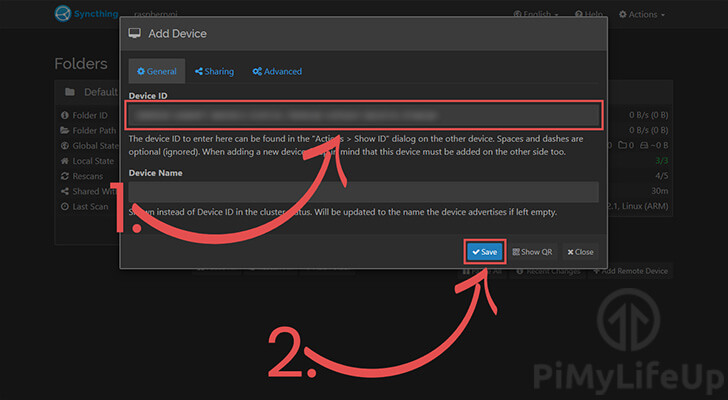
**2.** In this dialog, you can add the device ID you want to your pool.
In the top textbox (**1.**), enter the ID for the device you want to connect to. As the ID is relatively long, it will likely be easier to copy and paste the ID over.
Once done, you can click the “`Save`” button (**2.**) to add the device and begin the connection process.
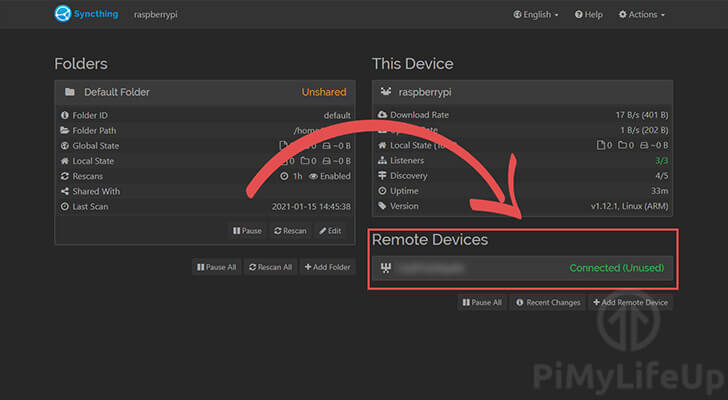
**3.** Once both Syncthing servers have each other’s IDs added, you should see that you’re successfully connected.
### Synchronizing a Folder with your Connected Devices
With a device now connected to our Raspberry Pi Syncthing, we can try sharing a folder with the device.
For this section, we are just going to use the default folder. In this case, the folder is located at “`/home/pi/sync`” on our Raspberry Pi.
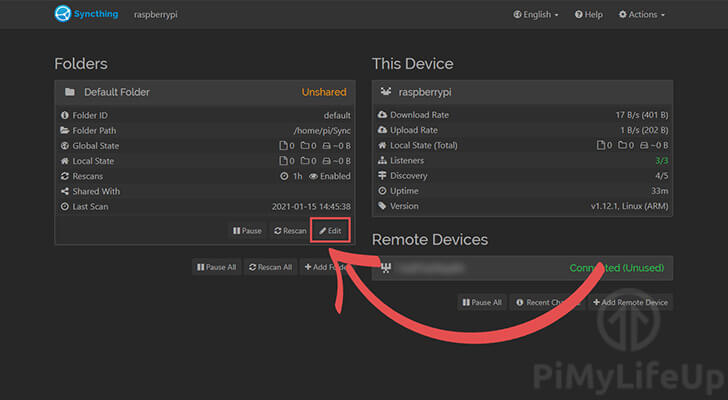
**1.** To begin editing an existing folder’s share settings, click the “`Edit`” button underneath that folder.
This button will bring up the settings dialog, for that folder and will allow us to adjust who it is shared with.
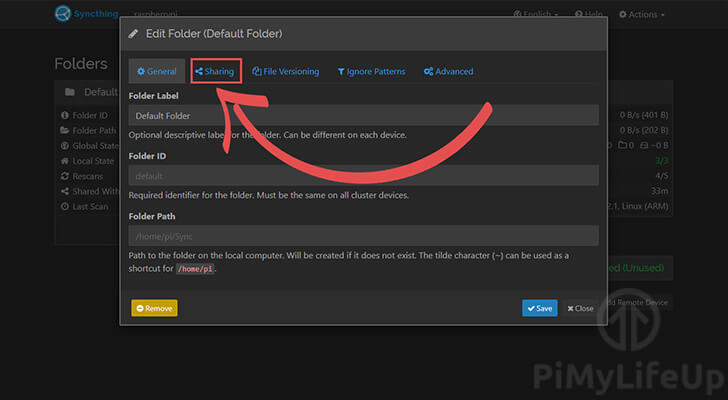
**2.** Within the file settings dialog we will need to change to the sharing tab.
You can change to this tab by clicking the “`Sharing`” tab.
**3.** Using this dialog, you can select the devices you want to share the folder with (**1.**).
Once you have the devices you want to be synchronized with selected, click the “`Save`” button (**2.**).
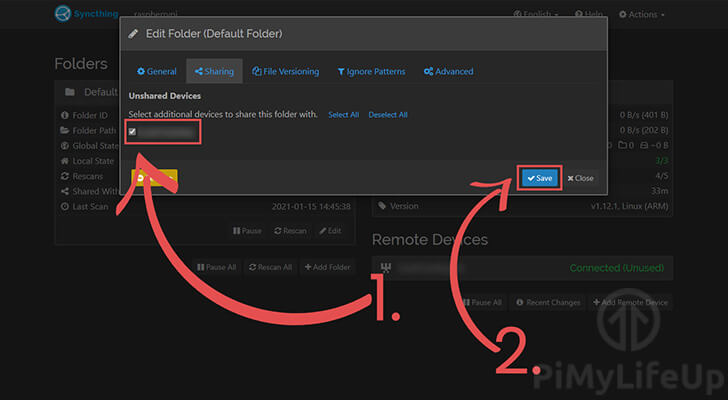
Please note that after you share a folder with another device, you will have to accept it on that device before the synchronization will begin.
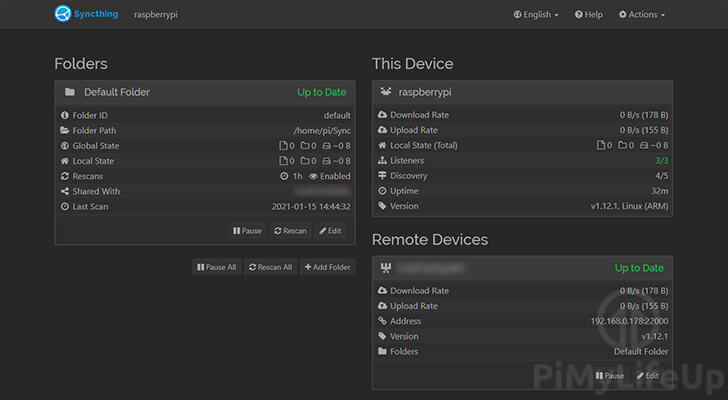
**4.** You should now see that your folder has now begun synchronizing.
Once it has finished synchronizing, you should see both the folder and the device marked as “Up to date”.
# Reference
- [Syncthing](https://apt.syncthing.net/)
- https://pimylifeup.com/raspberry-pi-syncthing/
- https://www.linuxfordevices.com/tutorials/ubuntu/syncthing-install-and-setup