Linux Samba Server on Windows 11
Share external drive with Samba on Raspberry Pi
UFW firewall allow Samba inbound from Windows
Configure Samba Server with Debian
Install Samba server
Check what is the IP address of the server.
ip addr
Update Server
sudo apt update
Install required package for Samba server.
sudo apt install samba samba-common-bin
Enable samba service on reboot.
sudo systemctl enable smbd
sudo systemctl start smbd
sudo systemctl status smbd
Open the following ports on the firewall.
sudo ufw allow 139
sudo ufw allow 445
sudo sudo ufw allow Samba
Now, restart the smbd service
systemctl restart smbd
Check running status of service.
systemctl status smbd
Mount drive in Linux
https://www.lefkowitz.me/setup-a-network-share-via-samba-on-your-raspberry-pi/
sudo fdisk -l
Look towards bottom and assuming this is the only additional drive you have plugged in, you should see something like this:
Device     Boot Start       End   Sectors   Size Id Type
/dev/sda1  *        2 975400959 975400958 465.1G 83 Linu
/dev/sda1 is the name of the partition on our external drive.
Create a directory within our /media/ folder to mount drive into
sudo mkdir /media/USBHDD
Ensure full access to the directory.
sudo chmod -R 777 /media/USBHDD/
Mount external drive into that new directory.
sudo mount -t auto /dev/sda1 /media/USBHDD
Edit fstab configuration so that drive will properly mount whenever Raspberry Pi reboots.
sudo nano /etc/fstab
Add the following line to the bottom of the config file
/dev/sda1 /media/USBHDD auto noatime 0 0
How to setup samba share.
Define a folder that will be shared across the network. In our example, the scenario folder name will be smbshare.
Create a folder first.
mkdir /media/USBHDD
Before editing, copy the samba configuration file for the safe side.
cp /etc/samba/smb.conf smb.conf.orig
Edit the conf file and amend the following line at the bottom.
[[smb.conf]]
[sambashare]
comment = Samba share
path = /media/USBHDD
read-only = no
browsable = yes
writeable=yes
guest ok = yes
create mask = 0777
directory mask = 0777
Add a samba user to provide access over the internet.
sudo useradd smbuser
Provide smb authentication to the newly created user i.e. smbuser.
sudo smbpasswd -a smbuser
Make smbuser owner for samba share.
sudo chown smbuser:smbuser /smbshare/
if errors:
sudo systemctl enable smbd.service
sudo systemctl start smbd.service
Restart the samba service once again.just saw
systemctl restart smbd
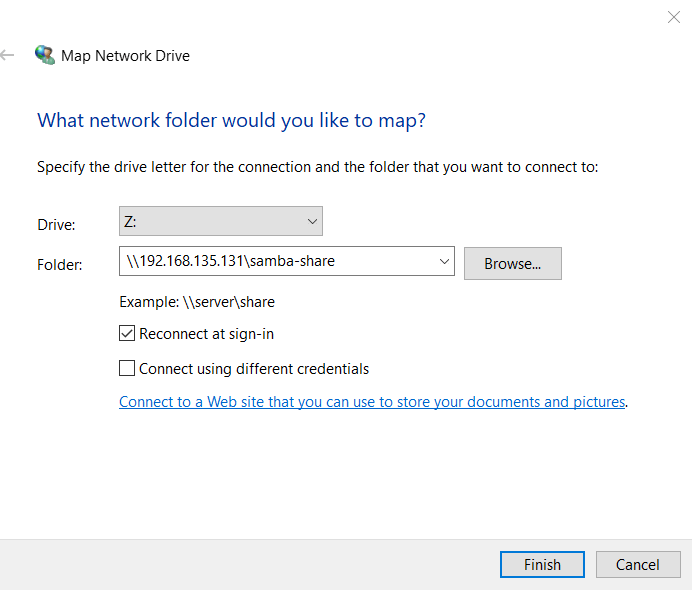
Open an MS window client. Map drive
Reference:
Share external drive with Samba on Raspberry Pi
https://fernandezvictor.medium.com/raspberry-pi-as-samba-server-to-create-shared-folder-between-computers-cdea979092b8
Upgrade Debian 12 From Debian 11
https://www.webnots.com/how-to-enable-smb-server-in-windows-pc/
https://orcacore.com/install-samba-file-sharing-debian-12/?trk=article-ssr-frontend-pulse_little-text-block
https://www.lefkowitz.me/setup-a-network-share-via-samba-on-your-raspberry-pi/
UFW firewall allow Samba inbound from Windows